
ADD WHATSAPP SHARING WIDGET TO AN BLOGGER:
adding an whatsapp sharing widget is easy by using addthis.com by using these,anyone can easliy add whatsapp sharing button widget to any website or blogger or wordpress,follow the steps to add an whatsapp sharing button widget to your website or blogger or wordpress

How To Add Whatsapp Share Button To Blogger Blog
Sign in to your AddThis dashboard at www.addthis.com
Click the “Get the Code” button




Click the “Get the Code” button

Sign in to your Blogger dashboard at blogger.com.
Navigate to Theme > Edit HTML
Use CTRL F to find </body>
Copy and paste the AddThis code above the </body> tag
Click “Save Theme”
Navigate to Theme > Edit HTML
Use CTRL F to find </body>
Copy and paste the AddThis code above the </body> tag
Click “Save Theme”
Now, go back to your AddThis dashboard
Click on “Tools” > “Add New Tool“
Click “Share Buttons“
Click on “Tools” > “Add New Tool“
Click “Share Buttons“

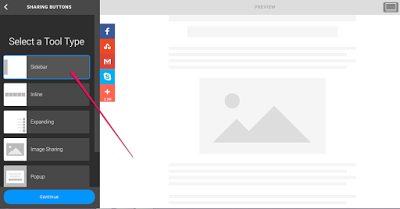
Select “Sidebar” tool type and click “Continue”

Set how you want it to display on desktop and mobile devices. You can “hide” it on mobile if you want to.
Select “Select Your Own” option under “Social Networks”
Click on “Add More Services“
Search for “Whatsapp” and click on it to add it to your share buttons. You can click and drag to re-order and you can remove services from the list.

Click “Save and Continue”
If you view your blog, the sharing buttons should now be displayed on your blog as seen below:

If you want it to appear below your blog posts, you will have to create “inline” type sharing tool instead of “sidebar” type and add an additional addthis inline sharing tool code to your blog’s html.
I hope this helps.
how to add an whatsapp sharing button widget to an blogger
 Reviewed by astin salvi
on
11:11 AM
Rating:
Reviewed by astin salvi
on
11:11 AM
Rating:
Reviewed by astin salvi
on
11:11 AM
Rating:


No comments: